Game Utilities
Why Frame Time Consistency Beats High FPS for True Gameplay Smoothness
Discover why your high framerate feels choppy and how frame time spikes impact gameplay fluidity more than your average counter suggests.
6 min read
 Practical guides to gaming applications and news
Optimize OBS Studio to run smooth 720p streams on hardware lacking NVENC by strictly managing CPU resources and downscaling.
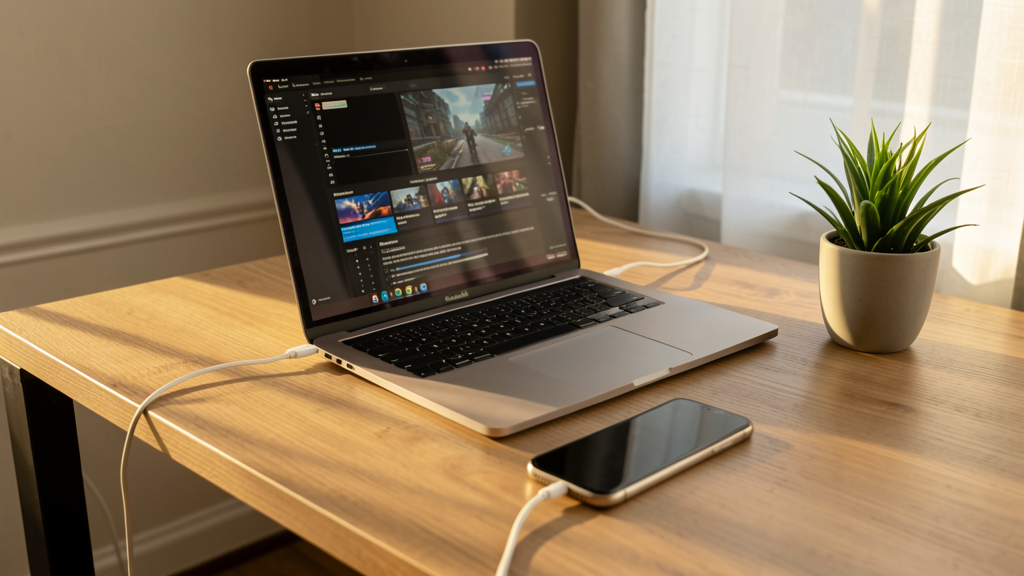
Editorial image illustrating How to Configure OBS Studio for Zero-Lag Streaming on a Mid-Range Laptop
Streaming on a budget in 2026 is a balancing act that often leaves your system gasping for air. You fire up a demanding title like Stalker 2 or GTA VI, hit "Start Streaming" in OBS, and suddenly your framerate collapses. The chat complains about stuttering, and you are forced to choose between playing the game or broadcasting it. This usually happens because you lack a dedicated encoder like NVIDIA’s NVENC. You are relying on your CPU to do the heavy lifting for both the game physics and the video encoding, creating a bottleneck that chokes performance.
We need to reconfigure OBS to respect your hardware limits. The goal is not 4K60 glory—that is impossible here—but a rock-solid 720p or 900p stream that leaves enough CPU headroom for the game to remain playable. I will walk you through the exact settings to tweak, focusing on the x264 encoder and downscaling techniques that save cycles.
Before touching the interface, we must identify what you are working with. Open OBS Studio and go to the Settings menu. Under the Output tab, look at the "Output Mode" dropdown. Ensure this is set to Advanced.
Now, locate the Streaming sub-tab. Here lies the most critical decision: the Encoder. If you are reading this, you likely do not have a modern NVIDIA GPU, or you are using the integrated graphics on an Intel Core or AMD Ryzen laptop. Do not select "NVIDIA NVENC H.264 (new)". Instead, select x264.
Why? x264 is the software implementation of H.264. It runs entirely on your CPU. While NVENC uses a dedicated chip on the GPU, x264 fights for resources with your game. However, x264 offers better quality per bitrate than many older hardware encoders. The trick is to configure it so it does not eat 100% of your processor.
If you are on a modern Intel iGPU, you might see "QuickSync H.264" as an option. It is viable, but for the sake of this guide, we will assume the worst-case scenario: you have to use the CPU. Do 'Game Booster' Apps Like Razer Cortex Actually Increase FPS? Sometimes the answer is simply shutting down background processes rather than hoping for magic optimization software.
This is where most users crash their streams. In the Encoder settings, if you have chosen x264, you will see options for Rate Control. Set this to CBR (Constant Bitrate). While VBR (Variable Bitrate) offers better quality locally, CBR is safer for stability on Twitch and YouTube, preventing sudden spikes that trigger buffering on your viewers' end.
Set your Bitrate to a conservative number. For a mid-range laptop on a standard home connection, do not go above 4500 Kbps. If your internet upload is average, stick to 3000 or 3500 Kbps. High bitrate requires higher CPU usage to maintain quality. Lowering the bitrate slightly eases the load on the processor.
Next, look at the "CPU Usage Preset". The default is usually "medium" or "fast". Change this to veryfast. Do not use "superfast" unless you are desperate, as the quality loss is noticeable. "Veryfast" offers the best trade-off, reducing CPU load by about 20-30% compared to "fast" with minimal visual degradation. I cannot stress this enough: do not manually type "slow" or "medium" into the box thinking it will give you pro quality. It will just freeze your game.
Rendering a game at 1080p and then streaming it at 1080p is mathematically expensive for a CPU encoder. We need the computer to do less work. Navigate to the Video tab in the Settings menu.
Set your Base (Canvas) Resolution to your monitor's native resolution (usually 1920x1080). This keeps your interface crisp. However, look at the Output (Scaled) Resolution. Change this to 1280x720. If you have a slightly stronger CPU, you might try 1600x900, but 720p is the safety zone for mid-range hardware.
Under the "Downscale Filter," select Lanczos (sharpening scaling, 36 samples). Lanczos is computationally more expensive than Bilinear, but since we are saving so much power by outputting fewer pixels, we can afford to make those 720p pixels look good. If you still experience stutters, switch this to Bicubic.
Why Frame Time (1% Lows) Matters More Than Average FPS for Smoothness In this context, aggressive downscaling ensures your 1% lows don't tank when the encoding thread spikes.
While still in the Video tab, check the Common FPS Values. You might be tempted to select 60. If your laptop struggles, drop this to 30 or, if you want a middle ground, type 45 manually. Streaming at 60fps via x264 requires significantly more CPU power than 30fps. A stable 45fps stream often feels smoother than a jittery 60fps one because it leaves headroom for the game to render frames without dropping them.
How you capture the game matters as much as how you encode it. Go back to the main OBS window under Sources. If you are using "Display Capture" or "Window Capture", you are asking the CPU to do extra work compositing the image.
Switch to Game Capture. It hooks directly into the graphics API (DirectX or Vulkan), which is significantly more efficient. However, Game Capture can be finicky. If you are playing a DirectX 12 title and the stream flickers or crashes, try enabling "Multi-adapter Compatibility" in the Game Capture properties.
If you are using Discord overlays, be warned. Why Does the Discord Overlay Crash Specifically in DirectX 12 Titles? The conflict arises because both OBS and Discord try to inject into the same rendering pipeline. Disable the Discord overlay in-game before you start streaming to save yourself the troubleshooting headache.
Your operating system tries to balance power saving with performance. We need to tell it to stop saving power. Open your Windows 11 Power settings and ensure you are on "High Performance" or "Best Performance".
Return to OBS. Go to Settings > General. Scroll down to "Process Priority". Change this from Normal to Above Normal. This tells Windows that OBS encoding threads are more important than background tasks like Windows Update or Edge browser pre-rendering. Do not set this to "High" or "Realtime", as that can make your mouse input lag because the OS prioritizes the stream over your input drivers.
Do not trust that it works just because the settings look right. You need data. While you are testing, run a monitoring tool in the background. MSI Afterburner vs. HWiNFO64: Which Tool Gives Better Data for Troubleshooting Stuttering? Personally, I prefer HWiNFO64 for this specific scenario because it shows individual core temperatures and package power usage with less overhead.
Watch your "Encoder Lag" in OBS (accessible via View -> Stats). If this number is in the red or rising, your CPU cannot keep up with the encoding demands. You must either lower your bitrate further or switch your preset to "superfast". If your "Skipped Frames" (due to rendering lag) are high, the game itself is too heavy, and you need to lower in-game graphical settings like shadows or view distance.
After applying these settings, you will likely see a drop in visual fidelity compared to an NVENC stream. The text might be slightly softer at 720p, and fast-motion scenes might show a few compression blocks. This is the cost of doing business on a mid-range laptop without a dedicated encoder.
However, you have gained stability. The stream will not drop. The game will not freeze. By enforcing a strict 720p output and the "veryfast" preset, you have created a safety buffer that prevents the CPU from hitting 100% utilization. In 2026, internet speeds are fast enough that viewers would rather watch a stable, well-paced 720p broadcast than a buffering 1080p mess. Test this configuration in a private lobby before going live to verify your temperatures remain under 85 degrees Celsius. If you throttle thermally, no software setting will save you—you might need to improve physical airflow or invest in a cooling pad.

Discover why your high framerate feels choppy and how frame time spikes impact gameplay fluidity more than your average counter suggests.
DirectX 12's explicit rendering management creates a fragile environment for external injection tools like Discord's overlay, leading to immediate crashes.